Build a labelled book-club signup form and preview its submitted values without sending data.
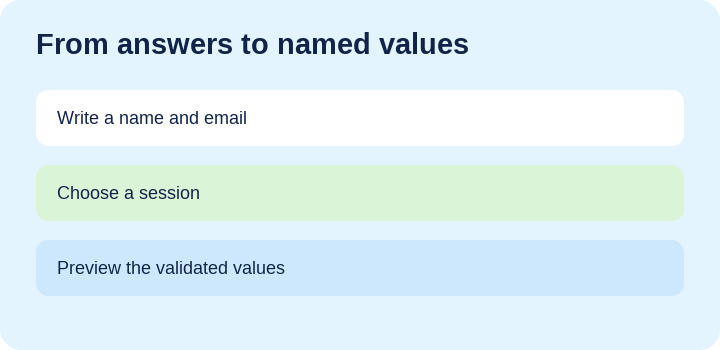
A form turns a reader’s answers into a set of named values. The browser can help with labels, control types, and basic validation before any application code runs. In this guide you will build a book-club signup example that checks its fields and displays a local preview of the submitted information. It will not send the result anywhere. That distinction makes it safe to experiment and helps you see which responsibilities belong to the browser and which belong to a real signup service.
Ask only for information you need
Plan the form as a conversation. What should someone know before they start? Which answers are essential? What will happen after they submit? This example asks for a name, email address, and preferred session because a club needs to know who is interested and which time suits them. It does not ask for an address, birthday, or contact details for a second person. A shorter form gives readers fewer opportunities to misunderstand a question and reduces the information a real service would have to protect.
Write meaningful labels before choosing input types. A label should name the answer you want, such as “Preferred session.” Add instructions separately if the format or consequences matter. A placeholder can illustrate a format, but it disappears when a person types and is not a substitute for a persistent label. If a field is required, identify that clearly in the text as well as applying the built-in constraint. Explain optional fields when it is unclear why someone would fill them.
Build a form that previews its data locally
Paste this complete example into the HTML editor. Try submitting it empty, then enter test information using a reserved example domain. The preview button asks the browser to validate the form, then reads its fields locally. This works inside the editor sandbox, which blocks ordinary form submission.
<!doctype html>
<html lang="en">
<head>
  <meta charset="utf-8">
  <meta name="viewport" content="width=device-width, initial-scale=1">
  <title>Book club signup practice</title>
  <style>
    body { max-width: 36rem; padding: 0 1rem; margin: 2rem auto; font: 1rem/1.55 system-ui; color: #10244a; }
    form { display: grid; gap: .7rem; background: #e9f5ff; padding: 1rem; border-radius: .75rem; }
    input,select,button { font: inherit; padding: .5rem; }
    input,select { width: 100%; box-sizing: border-box; }
    button { width: fit-content; background: #0053ad; color: white; border: 0; border-radius: .4rem; }
    :focus-visible { outline: 3px solid #763200; outline-offset: 2px; }
    output { display: block; margin-top: 1rem; white-space: pre-wrap; overflow-wrap: anywhere; }
  </style>
</head>
<body>
  <h1>Book club signup practice</h1>
  <p>Fill in all three fields to preview the values. Nothing is sent.</p>
  <form id="signup">
    <label for="reader-name">Name</label>
    <input id="reader-name" name="reader" autocomplete="name" required>
    <label for="reader-email">Email address</label>
    <input id="reader-email" name="email" type="email" autocomplete="email" required>
    <label for="session">Preferred session</label>
    <select id="session" name="session" required>
      <option value="">Choose a session</option>
      <option value="tuesday">Tuesday evening</option>
      <option value="saturday">Saturday morning</option>
    </select>
    <button type="button" id="preview-signup">Preview signup</button>
  </form>
  <output id="answer" role="status"></output>
  <script>
    const form = document.querySelector('#signup');
    form.addEventListener('submit', event => event.preventDefault());
    document.querySelector('#preview-signup').addEventListener('click', () => {
      if (!form.reportValidity()) return;
      const data = new FormData(form);
      document.querySelector('#answer').textContent =
        'Name: ' + data.get('reader') + '\nEmail: ' + data.get('email') +
        '\nSession: ' + data.get('session');
    });
  </script>
</body>
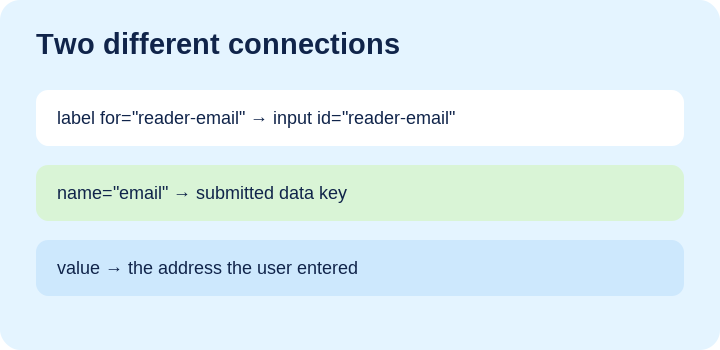
</html>Click the word “Email address” and see which control receives focus. The label points to the control’s ID, so the browser can connect them even though the elements are separate. IDs must stay unique. If you duplicate an input when building a second address field, change the identifier and its matching label together. Then use Tab to check the order and verify that the focused control is visible.
Distinguish a field’s ID, name, and value
The ID identifies the element inside the page. The name identifies the key when the form captures or sends its data. The value is what the reader entered or selected. Changing an ID may break a label but leave the data unchanged. Changing the name may leave the label intact but break the service that expects that key. This is why the example uses a reader name field whose identifier and submitted key are deliberately different.
The select displays a readable label for each option and submits the corresponding value. Tuesday evening becomes the short value shown in the preview. If your service expects a specific set of choices, document those values and validate them on the service as well. The empty first option does not count as a valid answer because this select is required. A dropdown with a real slot selected by default would pass validation without requiring an active choice, which may be appropriate only if the default is intentional.
A disabled control is normally omitted from form data. A read-only text control can still contribute its value. This difference matters when you temporarily prevent editing during a multi-step flow. If a field is unexpectedly missing, inspect the name and disabled state before looking at your server. For checkboxes, an unchecked box usually contributes no value. Design the receiver to distinguish absence from a value explicitly selected by the user.
Decide what validation can prove
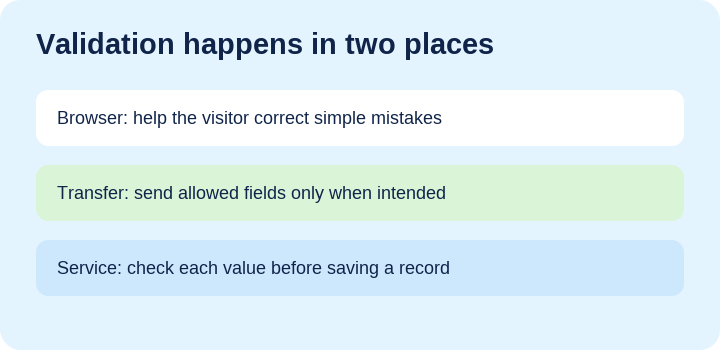
The required attribute checks that a field has an answer. The email type performs a syntax check. Neither tells you whether the address exists or whether the reader owns it. A browser can also be bypassed or used differently by an automated client. Once a form sends data to a real service, validate the incoming fields there and use a confirmation step if ownership matters. Client validation helps visitors fix simple mistakes immediately, but the service still decides what records it accepts.
In this sample, try a name containing an ampersand or angle bracket. The output treats it as text. Assigning input to an HTML field would have a different meaning and could allow the input to affect the page’s structure. Keep data separate from markup when displaying the result. This rule applies whether a browser displays the preview or a server builds a confirmation page.
Connect a real form only after designing the response
In a normal HTML form without the example script, the action is where the browser sends the fields and the method controls how the request is made. A search form often uses a read-only request whose query ends up in the URL. A signup, which writes a record and may contain personal information, needs a suitable service and should not include those values in a public query string. Decide how successful and unsuccessful submissions will be shown. Keeping answers after a recoverable error makes a form less frustrating, provided the application handles the information appropriately.
Finish by changing the session options and testing one invalid email and one valid sample. Confirm what appears in the preview and that nothing leaves the page. For reference details, see MDN’s your first form guide.
Test the cases a visitor can encounter
First press the preview button with every field empty. The browser should keep the form in place and direct attention to a missing field. Next fill in a name and enter an address without an at sign. The message may be different across browsers. Test what actually happens rather than promising a particular wording. A visitor should be able to find the field that needs attention, correct the value, and continue with the information they already entered. Keep the page zoomed in while you test so you can see whether the validation prompt stays near its field.
Now enter an address such as [email protected] and leave the first session option selected. Notice that the form still cannot proceed. Choose a session with your keyboard and press Enter on the preview button. The live status should list three values. Change the session and submit again. The output should change instead of creating a second copy. This test separates the three constraints so you can tell whether a missing name, invalid email, or missing selection causes a problem.
Finally use a name with accents and a long email address. Check that the control fits the container and that the preview wraps within the page. If text spills out of a result area, inspect its white-space and wrapping rules rather than limiting legitimate values to disguise a layout problem. Test a long session label as well. You may find that the dropdown needs a different width on a translated page, even though its submitted value remains a short string.
Provide a useful response after submission
In a real service, give a successful visitor enough detail to know what happened. For example, “You are on the waiting list for Tuesday” communicates a different state from “Your place is confirmed.” If a session fills up while a page is open, return an explanation and let the visitor choose an available time without starting over. Keep the distinction between a temporary network error and a rejected answer. Retrying helps the first case but does not fix the second. Consider what happens if a person presses submit twice. The receiver should avoid unintentionally creating two signups for one attempt.