Build a class schedule to practise HTML elements, boolean attributes, IDs, links and accessible disclosures.
When you read HTML for the first time, most of what you see is punctuation around ordinary words. The punctuation is useful because it tells the browser where an element begins, where it ends, and what additional information it needs. This guide builds a tiny class schedule and uses it to explain which tags fit which jobs. You will also learn how to read an unfamiliar attribute and how to distinguish an invalid element from a valid element used for the wrong purpose.
Read an element from the outside in
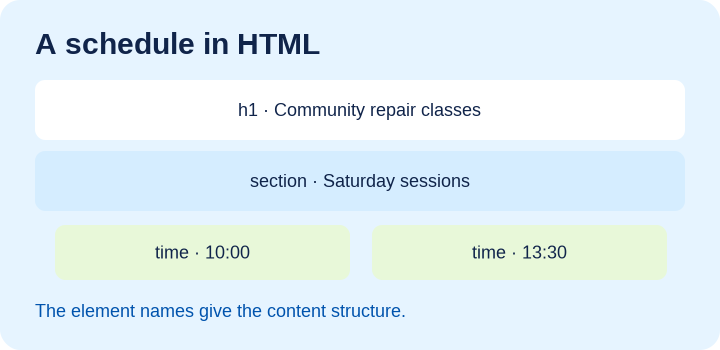
Start with a heading such as a class name. The opening tag contains the element name inside angle brackets. The closing tag has the same name and adds a slash. Everything between them is the heading’s content. The content can itself contain other elements when the HTML rules allow it. That nesting is how a browser learns that emphasis belongs to a specific phrase inside a paragraph rather than to the whole page.
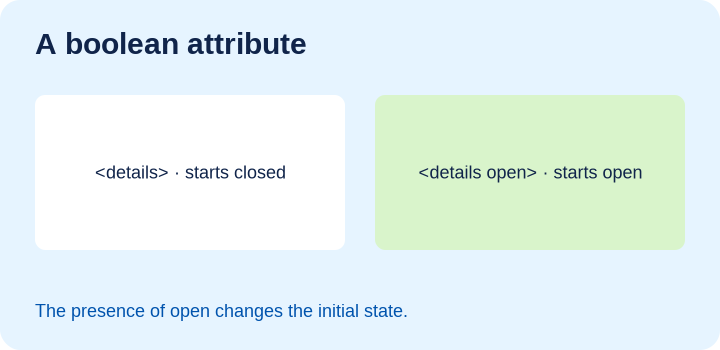
Attributes appear in an opening tag. Some take values, such as the destination of a link. Others are boolean: their presence enables the feature. The browser does not interpret the string false as turning a boolean attribute off. To make a disabled button usable, remove the disabled attribute or change its corresponding DOM property. Leaving the attribute present with a different string value still disables the button. This distinction is easy to miss if most of your programming experience comes from languages where true and false are ordinary values.
Use quotes around attribute values even when they could be omitted. A space can otherwise be treated as the end of one value and the start of another attribute. Put spaces between attributes, and close the quote before the tag’s ending angle bracket. The browser can recover from many errors, so an incorrect line may appear to work until you add another attribute. Consistent quotes help both beginners and the formatters that inspect their code.
Build a class schedule
The example is a small page for a fictional community class. It uses a page heading, one main region, an identified section, a list and a real link. Paste it into the HTML editor to see what the browser can express with markup alone.
<!doctype html>
<html lang="en">
<head>
  <meta charset="utf-8">
  <meta name="viewport" content="width=device-width, initial-scale=1">
  <title>Community repair classes</title>
</head>
<body>
  <main>
    <h1>Community repair classes</h1>
    <p>Bring one small item to practise basic repairs.</p>
    <nav aria-label="Schedule navigation">
      <a href="#schedule">Skip to the schedule</a>
    </nav>
    <section id="schedule" aria-labelledby="schedule-title">
      <h2 id="schedule-title">Saturday sessions</h2>
      <ul>
        <li><time datetime="10:00">10 a.m.</time> — Hand-sewing basics</li>
        <li><time datetime="13:30">1:30 p.m.</time> — Patch a bicycle tube</li>
      </ul>
      <details>
        <summary>What should I bring?</summary>
        <p>Bring your item and a notebook. Spare tools are available.</p>
      </details>
    </section>
  </main>
</body>
</html>Try the disclosure labelled “What should I bring?” with a pointer and then with the keyboard. The details element groups the summary and its hidden content. The summary is the part that remains visible when the disclosure is closed. Add the open attribute to the opening details tag and reload. The disclosure starts expanded because the attribute is present. Remove it and reload again to restore the collapsed starting state. That exercise gives you a simple way to see a boolean attribute without writing JavaScript.
Look at the two time elements. Their visible words are written for a reader who uses a twelve-hour clock. Their machine-readable values use a consistent twenty-four-hour format. This helps programs that consume the information separately. Only include values that represent the same thing as the text. If you change the afternoon class to start at two, update both values. An attribute does not automatically rewrite the prose next to it.
Choose tags by meaning and behaviour
A link should take a visitor somewhere. A button should perform an action. The tags are not interchangeable simply because both can respond to a click. A link has browser features such as opening in a separate tab and copying its address. A button can be activated with the keyboard and, inside a form, may submit it depending on its type. Use a button type of button for an action that should not submit a form. For navigation, keep the address in the link itself.
A section is useful when the contents form a meaningful group with a heading. A generic container is useful when you need to wrap a group for layout and the wrapper has no extra meaning. Do not turn every wrapper into a named region. Too many named landmarks can make the page harder to navigate. In the schedule example, the schedule has a distinct purpose, and its heading gives it a useful name.
Lists distinguish a set of related things from prose. Use an ordered list when the sequence or ranking matters. Use an unordered list when every item belongs to the same group but ordering does not define its meaning. A standalone line with a bullet character can look similar, yet it does not provide the same structure. The schedule uses an unordered list because it is a short collection of sessions. If the page instead explained the steps for repairing a tube, ordering would be part of the instructions.
Decide whether you need a class or an ID
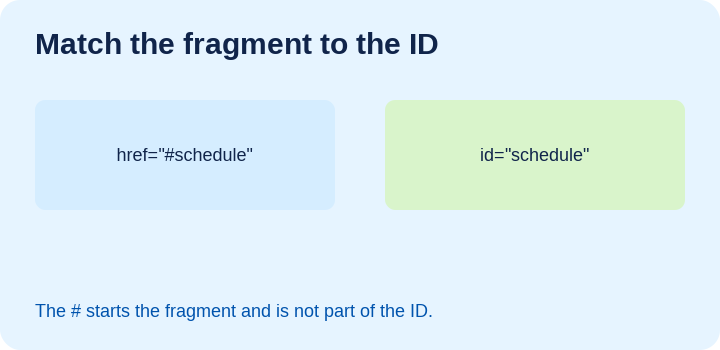
An ID names one element in the document. In the example, the schedule link points to the schedule section using a fragment. If you change the ID, change the link as well. Duplicate IDs make references ambiguous and can direct users to the wrong element. The same rule helps with form labels, which can point to a field by its ID. Keeping identifiers descriptive makes those references easier to trace during review.
A class is a reusable label you can apply to many elements. Use it to style every class session in the same way. A class does not add meaning by itself. If you replace the list items with generic elements and assign them a class named list-item, the browser does not infer that they are part of an HTML list. Keep the semantic element and add the class for presentation. That gives you a readable page before CSS loads.
Diagnose common markup problems
If clicking a same-page link has no visible effect, confirm that its address starts with a hash and that an element with the matching ID exists. Check capitalization and remove accidental whitespace. If the destination is already visible, make the viewport shorter so you can observe whether the browser scrolls. You can also look at the address bar of an ordinary browser page to see whether the fragment changed.
When the page looks wrong after editing a tag, inspect the browser’s element tree. It shows the structure the browser actually created after recovering from any invalid markup. If two paragraphs appear as siblings when you expected one to contain the other, the browser may have closed the first paragraph automatically. That repair is a clue to change the markup rather than add CSS to compensate. Format the source with the code formatters and review the indentation, but remember that formatting does not establish whether your elements are valid in context.
As a next step, add a third session with a distinct start time and a second disclosure for accessibility information. Test both disclosures with the keyboard. Then swap one generic wrapper for a meaningful element only if it improves the outline or behaviour. Keep the version that is easiest to navigate when styles are turned off. For additional examples, see MDN’s guide to basic HTML syntax.
Read an unfamiliar attribute in context
When copying an example, look up the attribute on the element where it appears. An attribute that accepts an address on one element can accept a different kind of value elsewhere. An image uses its source for the resource to display and its alternative text for a contextual description. Neither attribute describes the destination of a surrounding link. If the image is the only content inside a link, its alternative text should communicate what the link does for the reader. Test that by reading the link without looking at the image. This exercise helps you separate the visual subject of an image from the purpose of an interactive control.