Build a park visit page and learn how headings, lists, attributes and the document head fit together.
A web page starts as a file someone can read. Before you choose colours, a layout, or a framework, you can decide what the page is about and arrange the information in a useful order. HTML gives that information structure. It lets a browser distinguish the title of a page from its first paragraph, a numbered sequence from an unordered collection, and a link from ordinary text. In this guide you will build a small park visit page, open it in a browser, make a deliberate mistake, and learn how to find and repair it.
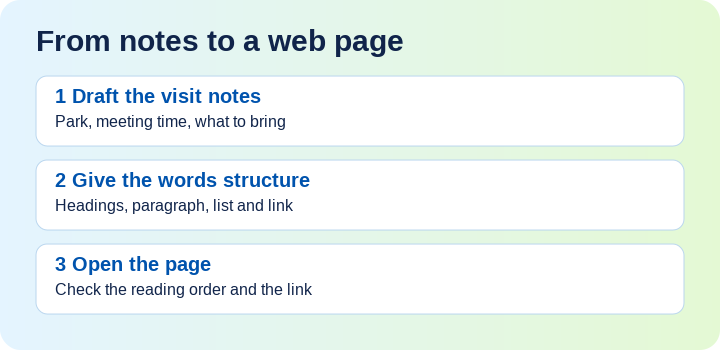
Decide what the page should answer
Our page needs to answer three questions: Where are we going? What should visitors bring? Where can they find more information? Write those answers as ordinary text before writing any markup. The name of the park belongs at the top. The packing list belongs together. Information about another website can appear as a link at the end. This is a small example, but the same method works for a course landing page or a help article. If a reader cannot follow the unstyled content in order, a more elaborate layout will rarely solve the underlying problem.
HTML elements represent these jobs. A heading introduces a section, a paragraph groups sentences, and a list represents a set of related items. A tag is the syntax you type to mark the beginning or end of many elements. An opening paragraph tag tells the browser where the paragraph starts. The closing tag has a slash and tells it where that paragraph stops. The whole unit, including the text between those tags, is the element. Some elements, including images and metadata declarations, have no closing tag. You will encounter both forms in this example.
Create a file you can open
Open the online HTML editor and use its HTML tab, or create a file named park.html in a plain text editor. If your editor offers rich text and plain text modes, select plain text. Save with UTF-8 encoding. A file named park.html.txt may open as text instead of a web page, so check that your file manager shows extensions. If you are using the online editor, you can also download the complete page and open that copy afterwards.
Paste this example as a whole document. It has a head with information about the file and a body with the information visitors actually read.
<!doctype html>
<html lang="en">
<head>
  <meta charset="utf-8">
  <meta name="viewport" content="width=device-width, initial-scale=1">
  <title>A Saturday visit to Willow Park</title>
</head>
<body>
  <main>
    <h1>A Saturday visit to Willow Park</h1>
    <p>Meet by the east gate at 10 a.m. for a short walk.</p>
    <h2>What to bring</h2>
    <ul>
      <li>Water</li>
      <li>A rain jacket</li>
      <li>A small notebook</li>
    </ul>
    <h2>Before you leave</h2>
    <p>Check the <a href="https://www.metoffice.gov.uk/">UK weather forecast</a>.</p>
  </main>
</body>
</html>If you work in a desktop editor, save and open the file in a browser. After each edit, save again and refresh the browser. If you use the online editor, run the preview after each change. You should see a large heading, two smaller headings, a bulleted list, and an underlined or coloured link. Your browser may use a different font or margin. HTML gives the browser enough information to display the page before you set any design rules.
Distinguish document settings from visible content
The doctype comes first. It tells browsers to use modern standards mode for the document. The root element wraps the page, and its language attribute states that the text is English. This helps assistive technologies choose a suitable pronunciation. On a multilingual page you can also label a phrase in another language separately, but start with the primary language on the root.
The head is where this document sets its character encoding, mobile viewport, and browser tab title. UTF-8 is a widely used encoding that handles accented characters and many writing systems. The viewport setting tells mobile browsers to size their layout viewport to the device width. It does not turn a fixed layout into a responsive design by itself. The title gives a label to the browser tab and bookmarks. The heading in the body is a separate element. To verify the difference, change only the title and refresh. The tab label changes, while the first heading on the page stays the same.
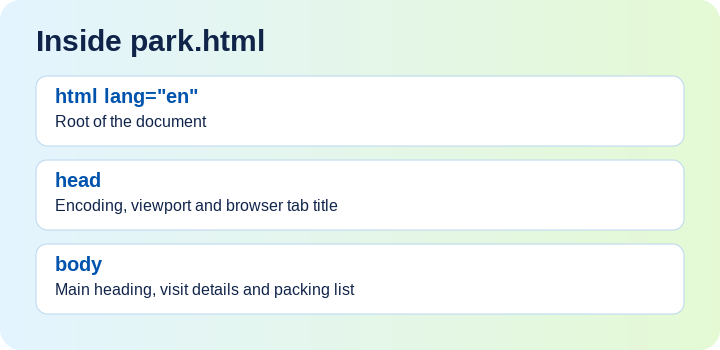
The main element encloses the primary content. This provides a useful landmark for people navigating with assistive technology. The example has one main heading followed by two sections of equal importance, so both section headings use the same level. If you add a subsection within the packing list section, use the next level down. Avoid choosing a heading level because you prefer its default font size. You can change visual size later with CSS while preserving the relationship readers rely on.
Add an attribute and see what it controls
An attribute provides additional information about an element. In the forecast link, the text between the opening and closing tags explains where the link goes. The destination goes in the quoted attribute in the opening tag. Change the destination to another page you know, then inspect the preview. The visible words do not change by themselves. If the words now describe the wrong page, update those too. Descriptive link text is helpful out of context, for example when a screen reader lists links on the page.
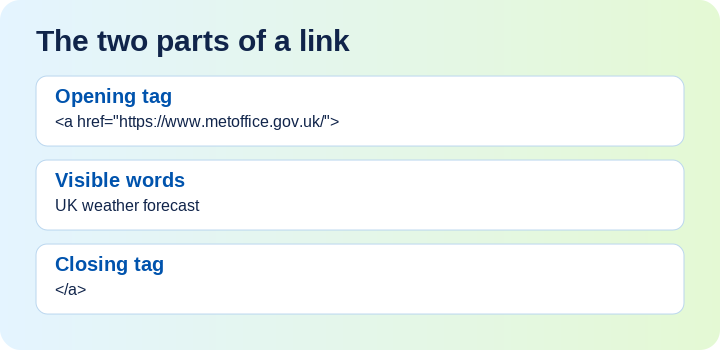
The example uses an absolute address because the destination is on a separate website. If you later add a second page in the same folder, its address can be relative to the current file. For example, a link with the destination packing.html looks for that file next to park.html. This is convenient while developing locally. Folder names, capitalization and file extensions need to match the real path. A link that works on your computer can fail on a case-sensitive server if the filename does not match character for character.
Try using the Tab key as you inspect the page. The browser should move focus to the forecast link. Press Enter to follow it in an ordinary browser tab, then return to your example. A restricted preview may prevent a destination from opening or embedding. That does not make the link syntax invalid. Test the actual downloaded document when behaviour depends on the browser’s navigation and security settings.
Practise with a controlled change
Add one new packing item inside the list, using the same opening and closing tags as the existing items. If you place it outside the list, move it back inside rather than trying to fix its appearance. Then change the visit time in the first paragraph. These two edits exercise different parts of the page: the first changes the structure of a list and the second changes only the words in an existing element. Save and check both changes, so you can distinguish a markup problem from a stale copy of the document.
Replace the packing list with a short sequence of directions if you want to practise another structure. Use the ordered list element when the sequence matters. Saying “walk to the gate, turn right, then cross the footbridge” is different from listing three things to bring. Browsers usually show numbers for an ordered list and bullets for an unordered list, but the important difference is the meaning of the order. It remains relevant even if a style sheet changes the markers.
Repair one mistake at a time
A blank or stale preview often has a simple cause. Confirm which file is open, save the editor buffer, and refresh the right browser tab. When the issue affects only part of the page, find the last element that looks correct. Inspect the first incorrect element and the line immediately above it. An unclosed quote can cause the browser to consume several lines as one attribute value. An accidental closing tag can put a heading or list outside its intended section. Indenting nested elements by the same number of spaces makes these boundaries easier to see, even though indentation itself does not create them.
Try removing the closing quote from the forecast destination. Notice how the link or later content changes. Restore the quote and compare the output. Browsers recover from many malformed documents, so seeing some content does not prove that your markup is valid. You can use the browser’s inspector to compare the tree it built with the source you intended. A dedicated HTML checker is a separate step, particularly before publishing pages with more complex nesting.
Once your example works, make a copy, rename the page for a real place or event, and change its headings and list to suit that purpose. Run the unstyled copy first and check that the order makes sense with just the keyboard and the document outline. Then try your first stylesheet. You can use the CSS editor to experiment without losing the original HTML.
Further reading: MDN’s basic HTML syntax guide.