Build a reading counter using variables, conditions, events and a single render function.
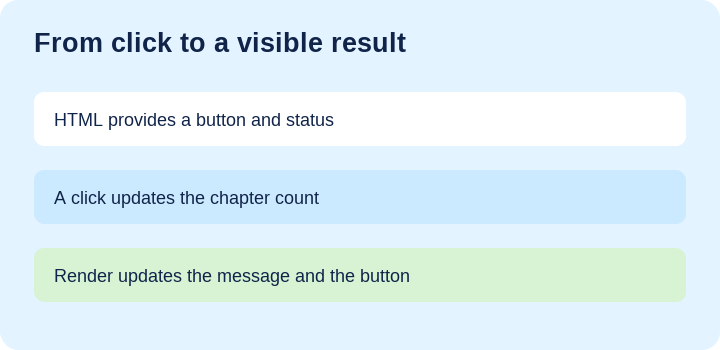
JavaScript lets a page respond after it has loaded. In this lesson you will build a counter for a short reading goal. Its page contains two buttons and a status. The script remembers the number of finished chapters, checks it against the target, and updates the visible message when a reader acts. This example keeps the data small enough to trace manually. The same habits apply when you later work with a larger interface.
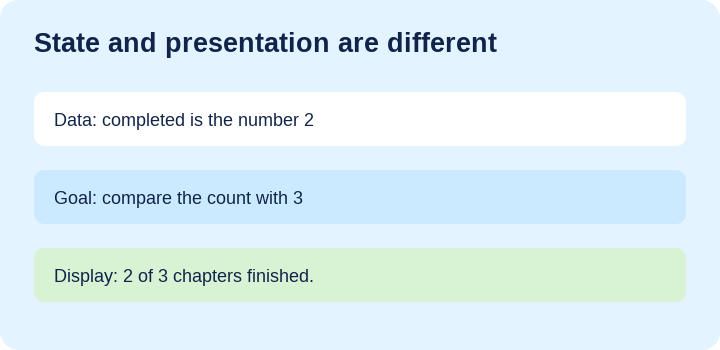
Separate the data from its presentation
Start by naming the information required for the feature. The target is three chapters, and the completed count starts at zero. The target can be a constant because this version does not change it during a visit. The count needs to be reassigned when a reader finishes a chapter. Store it as a number. If you keep the count only in a line of text, later code has to recover it from a sentence. That is brittle when wording changes or when the number needs a different display format.
Give the buttons stable IDs so the script can find them. The status also has an ID. The HTML already says what the page is for and shows the initial state. The JavaScript adds behaviour to those elements. Place the script after the relevant markup in this first example. The browser will have created the controls by the time the script asks for them. If the script runs before the HTML is parsed, a search for the button can return nothing.
Run the full example
Paste the complete document into the HTML editor. Press Finish one chapter several times, then Reset. Check the status after each action, especially the last step before reaching the goal.
<!doctype html>
<html lang="en">
<head>
<meta charset="utf-8">
<meta name="viewport" content="width=device-width, initial-scale=1">
<title>Reading goal counter</title>
<style>
  body { max-width: 36rem; margin: 2rem auto; padding: 0 1rem; font: 1rem/1.6 system-ui; color: #10244a; }
  .panel { padding: 1rem; background: #e8f5ff; border-radius: .75rem; }
  button { font: inherit; min-height: 44px; padding: .4rem .7rem; }
  button:focus-visible { outline: 3px solid #803800; outline-offset: 3px; }
</style>
</head>
<body>
<main class="panel">
  <h1>Reading goal</h1>
  <p id="status" role="status">0 of 3 chapters finished.</p>
  <button id="finish" type="button">Finish one chapter</button>
  <button id="reset" type="button">Reset</button>
</main>
<script>
  const goal = 3;
  let completed = 0;
  const status = document.querySelector('#status');
  const finish = document.querySelector('#finish');
  function render() {
    status.textContent = completed === goal
      ? 'Goal reached: ' + completed + ' chapters finished.'
      : completed + ' of ' + goal + ' chapters finished.';
    finish.disabled = completed === goal;
  }
  finish.addEventListener('click', () => {
    if (completed < goal) completed += 1;
    render();
  });
  document.querySelector('#reset').addEventListener('click', () => {
    completed = 0;
    render();
  });
  render();
</script>
</body>
</html>The number changes in the event handler and the render function updates the interface. Both buttons use the same render function. If you change the wording later, you have one place to update it. Set the status using plain text. The browser then displays those characters as text instead of treating them as new markup. This distinction becomes essential when part of the message comes from an input.
Understand the conditions
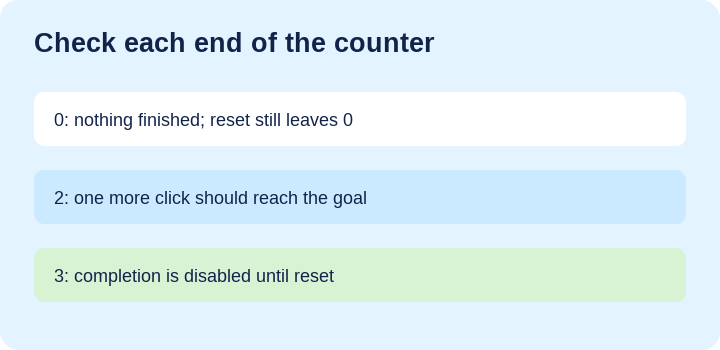
The test in the event handler prevents the count from going past the goal. The render function also disables the finish button when the goal is reached. These rules have related but different purposes. The condition protects the data, and the disabled state tells the visitor that no more increments are needed. Resetting the count also re-enables the button because render derives that property from the current number.
Compare using a strict equality test with assigning a value. Testing asks whether two values match. Assignment changes the value. A misplaced operator can therefore turn a question into an update. Keep conditions short until you can explain them in a sentence. Test with values immediately below, equal to, and above a boundary. A counter that behaves when it starts may still mishandle the last click.
Extend the counter in a small, testable way
Change the goal to five and run the example again. The starting text in the HTML still says three until the script renders. You can update the markup to match or store the initial goal once in a data attribute and read that value during initialisation. If you read a data attribute, the browser returns a string. Convert it to a number before comparing it with another numeric value. Check that the result is actually an integer and is greater than zero if a visitor can enter it.
Suppose you add another button that subtracts one chapter when someone clicks by mistake. Give it a clear label, add its event handler, and keep the lower bound at zero. Call the same render function. Test from the initial state, from one completed chapter, and after reaching the goal. These three cases reveal whether the subtraction can go negative and whether it correctly re-enables completion after a correction.
Debug the first point where expectation and reality differ
A click that does nothing can have several causes. Open the developer console and look for the first error. A syntax error can prevent the entire script from running. If the error mentions a missing object, check the selector and when the code runs. JavaScript does not infer that two similar IDs should refer to the same element. Inspect the rendered control to confirm the exact identifier.
If the handler runs but the count looks wrong, examine the value before and after the update. A number and a string can behave differently when added. Incrementing text might concatenate another digit instead of doing arithmetic. Keep the count numeric and turn it into words only for display. Finally reload and check your expectations about persistence. This example resets deliberately on reload because it does not store the value. A real feature might save a preference on the device or update an account, but that would be a separate behaviour to design and test.
Finish by adding a second goal for another book in a new copy of the example. Avoid duplicating IDs. Once both copies work, consider how to share the update logic while keeping their individual state separate. Use the JavaScript editor for small experiments and see MDN’s JavaScript guide for the underlying language.
Test keyboard use and a change in wording
Move through the controls with Tab, finish three chapters using the keyboard, and then reset. Notice where focus is when the finish control becomes disabled. On a more complex page you may need to make the next available action easy to find without taking focus away unexpectedly. Keep the visible status near the controls. If you translate the page, verify that the message still updates and wraps. Translating a sentence should not require changing the value that the program uses to make its decisions.
Trace a click before changing the code
Imagine the display reads two and you press the add button. Find the event listener for that button and look at its first statement. The current value is two when the listener begins. The assignment reads that value, adds one and stores three. The render function then reads three and writes a new string into the output. Reading this sequence aloud helps separate the value the program stores from the words the visitor sees. The same trace works if the starting value changes to ten or the increment changes to five.
Open the browser’s developer tools and put a breakpoint on the line that changes the number. Press the button while the tools are open. Execution pauses before the assignment, so you can inspect the current number. Step over one line and inspect it again. Continue until the page updates. If the program never pauses, check whether the listener is attached to the intended button. If it pauses and the stored value changes but the screen stays the same, check the call that updates the display.
Decide how the program handles unexpected input
If you add a field for a reading goal, the value obtained from the control is normally text. A text value of five and a number valued at five behave differently when combined with a plus sign. Check for an empty field first, convert the remaining text to a number, then accept only an integer within the intended range. Display a useful message next to the field so the visitor knows how to correct it. Try a blank, a decimal, a negative number and the largest permitted integer. Testing the boundaries makes your intended rules concrete before you reuse them in a second feature.
The same idea applies when data enters from a file or a saved preference. Decide which values are valid at the point where they enter your program, then keep the rest of the code working with a consistent representation. In the counter, all later decisions can work with a whole number. The display can choose its wording without also needing to decide whether the original input made sense. This separation makes a small feature easier to extend and debug.