Run a script inline, move it to an external file, and troubleshoot load order and request errors.
Adding JavaScript means deciding how the browser will find it and when it should run. A small demo can keep its script directly in the document. A project with several pages usually gives shared behaviour its own file. This guide teaches both methods using a short page that updates a status when a button is pressed. You will also learn why a path can work on one page and fail on another, and how defer differs from async.
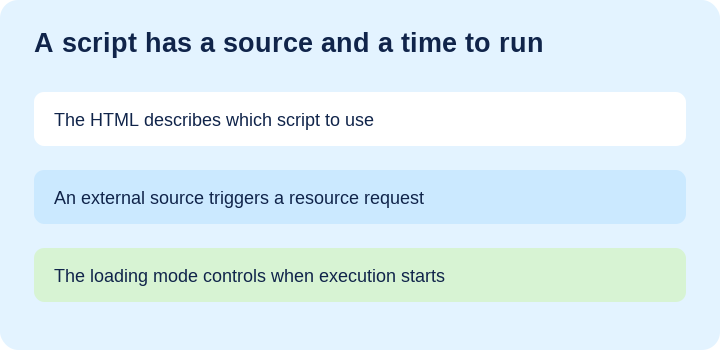
Try a script after the controls it needs
Create a file called index.html and paste this complete example. You can also run it in the HTML editor. The script is inline and appears after the paragraph and button it looks up. That order makes it easy to understand why the controls exist when the script runs.
<!doctype html>
<html lang="en">
<head>
<meta charset="utf-8">
<meta name="viewport" content="width=device-width, initial-scale=1">
<title>Script loading practice</title>
<style>
  body { max-width: 36rem; margin: 2rem auto; padding: 0 1rem; font: 1rem/1.6 system-ui; color: #10244a; }
  button { font: inherit; padding: .5rem .8rem; }
  button:focus-visible { outline: 3px solid #813800; outline-offset: 3px; }
</style>
</head>
<body>
<main>
  <h1>Script loading practice</h1>
  <p id="status" role="status">Waiting for the test.</p>
  <button type="button" id="test">Check the script</button>
</main>
<script>
  const test = document.querySelector('#test');
  const status = document.querySelector('#status');
  test.addEventListener('click', () => {
    status.textContent = 'The script ran and handled the click.';
  });
</script>
</body>
</html>Press the button and look for the exact status text. That proves more than seeing a script in the source. The browser found the button, attached the listener, and updated the paragraph after your action. Keep an observable test like this when adding behaviour to a complicated page. It lets you verify the loading step before connecting it to any services or data.
If your code will be shared across pages, move it into an external file. Copy only the lines inside the script element into check.js, in the same folder as the document. Leave the tags out of the JavaScript file. In the document head, add a script element with a source of that filename and the defer attribute. Keep both the opening and closing tags. Remove the old inline script so the code is not loaded twice.
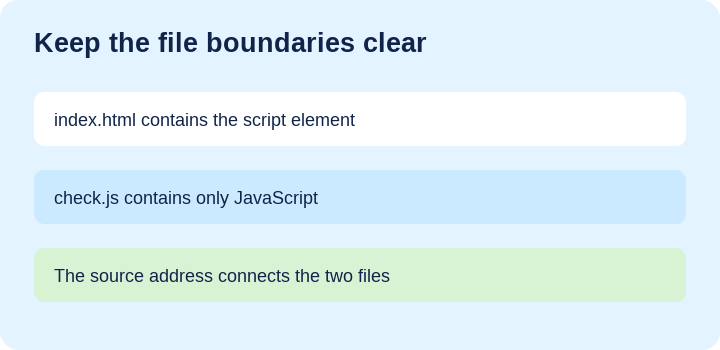
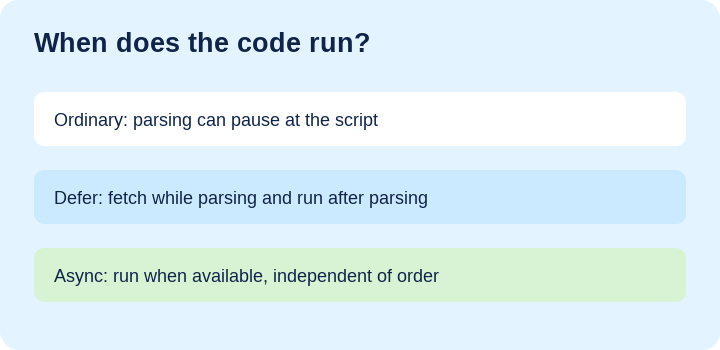
Choose a loading mode based on dependencies
A classic external script without async or defer can pause HTML parsing when the browser encounters it. If it appears before a button, the script may run before that button exists. Moving a small script below the markup is sufficient for this example. For a typical external script in the head that needs the whole document, defer is a useful option. The browser can fetch it while parsing and execute it after parsing is complete. Deferred classic scripts run in their document order, so dependencies should appear before the code that calls them.
Async is useful when a script can run independently of other scripts and does not need a specific execution order. Its execution depends on when the fetch finishes. It can run before or after a neighbouring asynchronous script and while parsing is still underway. Do not use async on both a library and a script that assumes the library is already present. That can create a problem that only appears on slower connections or when the cache is empty.
A module script uses the module system, can load imports, and is deferred by default unless you explicitly make it asynchronous. Modules also have different scoping and loading rules from classic scripts. Serve module examples through HTTP while testing imports. Opening a module graph from a file URL may hit browser restrictions even when the same files work on a local server. Use modules when the project needs imports or module scope, rather than adding the type merely to fix a timing problem in a simple inline example.
Debug a file that appears to do nothing
Start with the browser’s console. A syntax error can keep the entire file from running. Follow the line number and check the line above it as well. A missing bracket can make the first visible error appear far from the actual mistake. If the error says it cannot read a property of null, inspect the selector and make sure the element exists when the script runs. Move the lookup after the relevant markup or use the correct loading mode.
Next open the network panel and reload. Look for the request for your JavaScript file. If the path is wrong, the response may be a not-found page. If a web server uses a fallback, it may return that HTML document with a success status. Check the response type and content, particularly if the browser shows an error about JavaScript syntax or MIME type. A file with a JavaScript extension still needs to be served as the right resource.
Check for duplicate inclusion. If pressing a button causes an effect twice after you move code to an external file, confirm you removed the old inline version and did not include the same file in both a common header and a page template. Use the inspector to find script elements and look for identical sources. In a real application, repeated listeners can lead to duplicate requests, so it is better to fix initialisation than to hide the duplicate visible effect.
Move the example and test the path again
Copy the HTML into a subfolder while keeping the script in the parent folder. The relative path now starts from the new document location. Adjust the source to refer back to the parent, then refresh and run the test action. This small experiment helps explain broken files on nested pages. A root-relative address can work when the site is installed at the server root but may need to change when the project is hosted under another path.
Finally open the document with JavaScript disabled if your environment allows it. The heading and initial status should remain readable. Decide what a visitor needs to know when behaviour is unavailable, especially if it is essential to a workflow. For independent practice use the JavaScript editor, and consult MDN’s script element reference when choosing script attributes.
Check what changed when the project grows
When you add a second page, reuse the same external script only if the elements it expects are present or the script checks for them. Some layouts include the button on one page and omit it on another. A missing page-specific control should not prevent unrelated code from running. Keep shared initialisation small and move larger page-specific behaviour into its own file. Later, if you bundle files, verify the public URL and loading attributes on the generated page, because the browser sees the generated output rather than your source tree.
Verify what the browser actually received
In the network panel, select the script request and look at the full request URL. Compare its path to the page’s address and to the folder where you saved the file. Then read the response itself. Sometimes the URL is right but a cached copy still contains older code. A local hard reload can help you diagnose that while the developer tools are open. If other visitors also see stale behaviour after a release, update the deployed asset and its reference together, using a versioned filename when your deployment process supports it.
Keep the example’s message in the HTML when moving the code. That text lets you confirm the document has rendered before you test the JavaScript. Give the script a visible effect tied to a specific action, such as changing the message when the visitor presses a button. Trigger the control with both a mouse and a keyboard. If it triggers with a mouse alone, revisit how you implemented the control. A native button supplies both activation methods without separate listeners for each input.
Know when one script depends on another
Suppose a script defines a function that a second script uses during its own setup. If both are marked asynchronous, the second can run first on a slow request and fail even when it appeared to work during development. For dependent classic external scripts, put them in the intended order and use deferred loading. In a module project, express the dependency with an import. Test on a throttled connection when adding a dependency. A different download order is easier to encounter during this test than on a warm local connection.
You can also make a feature fail visibly and predictably. If it needs a particular data file that might be unavailable, keep the page’s heading and navigation intact and show a specific message in the feature area. Check what the user sees if the file is missing as well as when it loads. Separating startup work by feature makes it easier to locate a problem without guessing which part of a long script prevented the rest from running.