Make pages discoverable with semantic HTML, consistent URLs, useful metadata and contextual links.
A search engine and a reader both need to know what a page contains and how to reach related pages. HTML helps by supplying a document title, useful headings, ordinary links and meaningful descriptions. The goal is to create a page that communicates clearly when viewed, shared or followed from elsewhere. Start with one page and check its content, metadata and discoverability in that order. Add markup that reflects what is actually on the page.
Give each page a reason to exist
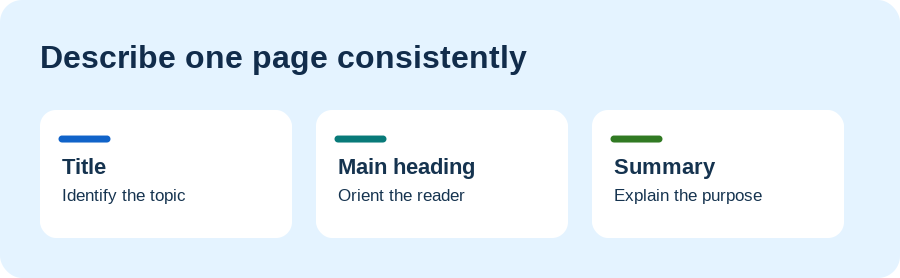
Choose the main task the page helps a reader complete. A guide to creating a form and a page containing a form builder have different purposes even if both mention labels and inputs. Describe the guide as a tutorial and describe the builder as a tool. A specific page title helps readers choose between them. Give the page a visible heading that makes the purpose obvious when they arrive. The title can include useful context such as a site name, while the heading can stay focused on the topic.
Write a concise meta description for the particular page. Mention the main subject and a useful detail the visitor can expect. Avoid promises the page cannot deliver and descriptions that would work equally well on every URL. Search engines may use visible text instead when it better matches a query. A good first paragraph therefore matters even if a description is present. Use the meta tag generator to prepare markup, then read it in the context of the final page.
Organise visible content with semantic HTML
Put core content in the main region and use sections and headings to reflect the reading order. For a guide, the introduction should explain the problem and the sections should describe distinct steps or decisions. If a heading says there is a working example, put the example nearby. For a tool, keep its name, required fields and instructions in the HTML so they are available before someone runs it. Content can still be interactive while providing a useful initial document.
Describe meaningful images in their context. A diagram showing how a browser chooses a picture source can explain that relationship in alternative text. A purely decorative divider should use an empty text alternative if it is inserted as an image. A file named screenshot final does not give the reader equivalent information. When the details are too long for a short alternative, add a nearby explanation or caption. This makes the details available to anyone who cannot see the graphic clearly.
Link related pages where readers need them
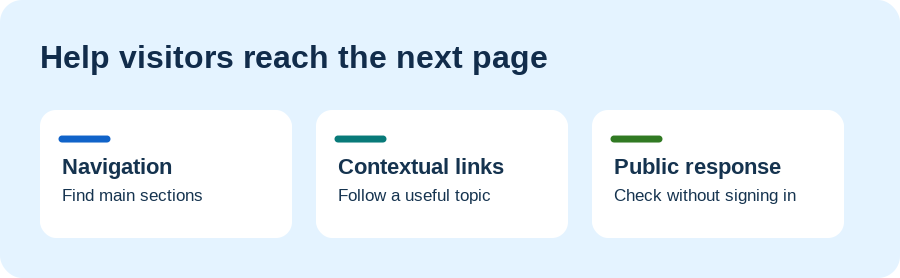
Use meaningful link text that describes the next page. A sentence on which source type an image uses can link to a guide on image formats. In navigation, keep names consistent with the pages they reach. Links as HTML anchors with destinations are straightforward for crawlers to follow and work with keyboard navigation or a visitor opening a link in a new tab. A button can trigger a tool action on the current page. For a trip to another page, an anchor expresses the destination directly.
Check the actual path of each link, including links within an article body and related links at the end. Follow them as a visitor without an account. A page that appears while you are logged in might be private or a draft. Check redirects, especially after renaming a page. When a new permanent address replaces an old one, update internal links to the new address and preserve the old path through an appropriate permanent redirect.
Try the markup on a small article
Use the preview to follow the in-page link and confirm that it moves to a real heading. The small script keeps that link inside the isolated preview. A regular HTML page uses the anchor as written. Open the source or copy it into the HTML editor to review the head. The sample domain is reserved for examples. Replace the canonical URL with the real public URL before publishing your own document.
<!doctype html>
<html lang="en">
<head>
  <meta charset="utf-8">
  <meta name="viewport" content="width=device-width, initial-scale=1">
  <title>Seed Starting Calendar | Garden Notes</title>
  <meta name="description" content="Build a seed starting calendar by working backwards from your expected last frost date.">
  <link rel="canonical" href="https://example.com/seed-starting-calendar/">
  <style>
    body { max-width: 38rem; margin: 1.5rem auto; padding: 0 1rem; font: 1rem/1.55 system-ui; }
    h2:target, h2:focus { background: #e0f2fe; }
    footer { padding-top: 1rem; }
  </style>
</head>
<body>
  <main>
    <article>
      <h1>Seed starting calendar</h1>
      <p>Work backwards from your expected last frost to plan when to start seeds indoors.</p>
      <nav aria-label="On this page">
        <a href="#example">See the calendar example</a>
      </nav>
      <h2 id="example">Calendar example</h2>
      <p>With a last frost date of 10 May, six weeks earlier is 29 March. Check the instructions for each seed variety.</p>
    </article>
  </main>
  <footer>Garden Notes</footer>
  <script>
    if (location.href === 'about:srcdoc') {
      document.querySelector('a[href="#example"]').addEventListener('click', event => {
        event.preventDefault();
        const heading = document.querySelector('#example');
        heading.tabIndex = -1;
        heading.focus();
      });
    }
  </script>
</body>
</html>Make URL preferences consistent
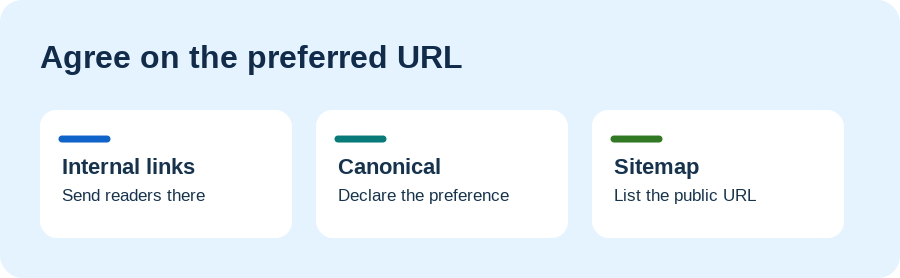
Pages sometimes appear at multiple URLs after sorting, printing or adding tracking parameters. A canonical link identifies the preferred URL when those addresses show equivalent content. Use an absolute address and keep it aligned with redirects, sitemap entries and internal links. Search engines can choose a different canonical when signals conflict. If both pages provide genuinely distinct content, give each its own intentional address and check how they should be discovered. Avoid choosing a homepage canonical for articles that should stand on their own.
Review the rendered page and the original response when troubleshooting. A template or plugin can add a second canonical or change a robots instruction even when the editor preview looks fine. A robots instruction on the page and a path block in a robots file are separate controls. A crawler needs access to read the page’s instructions. To investigate an omitted page, inspect its public response, search index status and crawl instructions before changing unrelated site content.
Use sitemaps and structured data for their intended roles
An XML sitemap lists the public URLs you want a crawler to discover. Include the preferred addresses that return successful responses. Remove obsolete URLs when the sitemap is rebuilt. Compare a sample of entries against their canonical links and ensure the sitemap itself is reachable. Use the XML sitemap generator for a small manual list. A growing publication benefits from generating entries from its published records so the file does not depend on a second manually maintained inventory.
Structured data can describe a page or entities such as an article, author or breadcrumb list. Choose relevant properties and make sure they describe information readers can verify on the page. Use the search provider’s test tools for supported types and inspect the public result after deployment. Validation checks structure and certain requirements. Search display also depends on the page and the provider’s eligibility rules. Keep markup current when dates, authors or page paths change.
Check the page as a visitor and as a crawler
Open the production URL in a fresh session. Confirm that headings and links appear, the title identifies the correct page, and the public response does not require authentication. Inspect the preferred address and sitemap entry. Then use your property’s inspection report to review how Google sees the page. Check whether the live test and the indexed record represent different times before drawing conclusions from conflicting values. After significant changes, allow time for another crawl and keep the link reachable in the meantime. The Google Search Central starter guide covers discovery and indexing basics.
Maintain metadata when a URL changes
Before moving an established page, record its current address, linked pages, title and canonical. Update the path on a test copy first. Check that headers and breadcrumb links use the new location. On the public site, request the original URL and follow the redirect as far as the destination. A redirect that lands on an unrelated index can frustrate the reader who expected a specific guide. If several URLs need to move in a release, make a direct mapping from each original to its corresponding page and check every mapping after publishing.
Use the same process for an old page merged into a more complete guide. Ensure the destination includes the material that made the original useful. Then check the navigation and related guides so they point directly to the best destination. A visitor should be able to reach other useful material from that page without having to return to the homepage. Maintain an HTML directory when it gives readers an organised overview, and regenerate the machine-readable inventory after the move. Inspect a few migrated URLs again after the site has been crawled.